

Watch on Youtube (Hand-drawn Animations) (No AI): https://youtu.be/0sqIkd4UBQg
A junior dev, a senior dev, a pizza that is also a burger, and every GitHub Actions concept you need to read (and write) a real workflow.
1. Why do we need CI/CD?
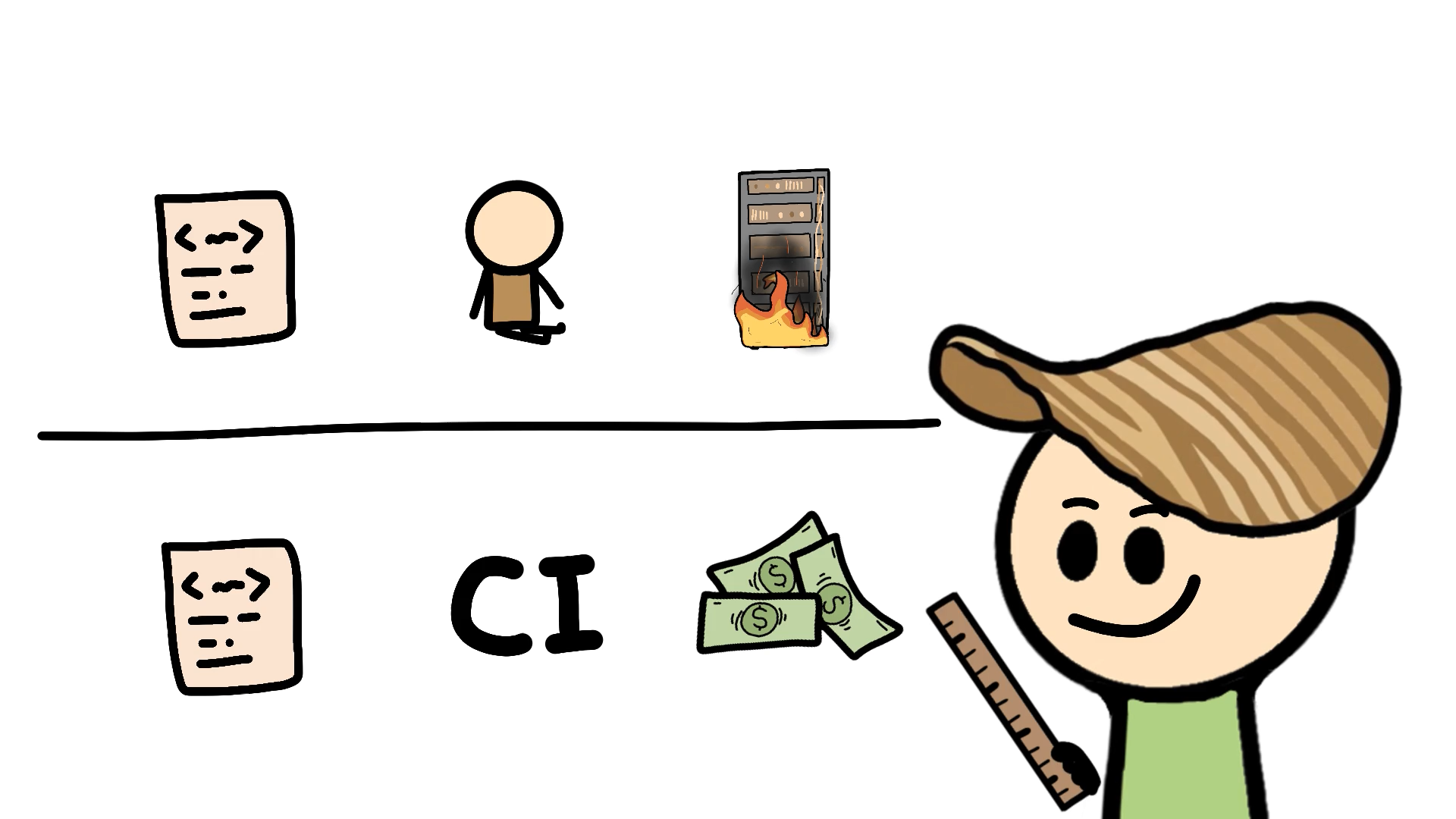
A junior developer asks a senior to review his code. The senior asks if he ran the unit tests. “Should I?” Yes. Then static analysis. Then lint. Then coverage. Each time, the junior runs back, annoyed that nobody gave him the full list at once. Finally everything is “done,” the senior says LGTM, and the code is merged.
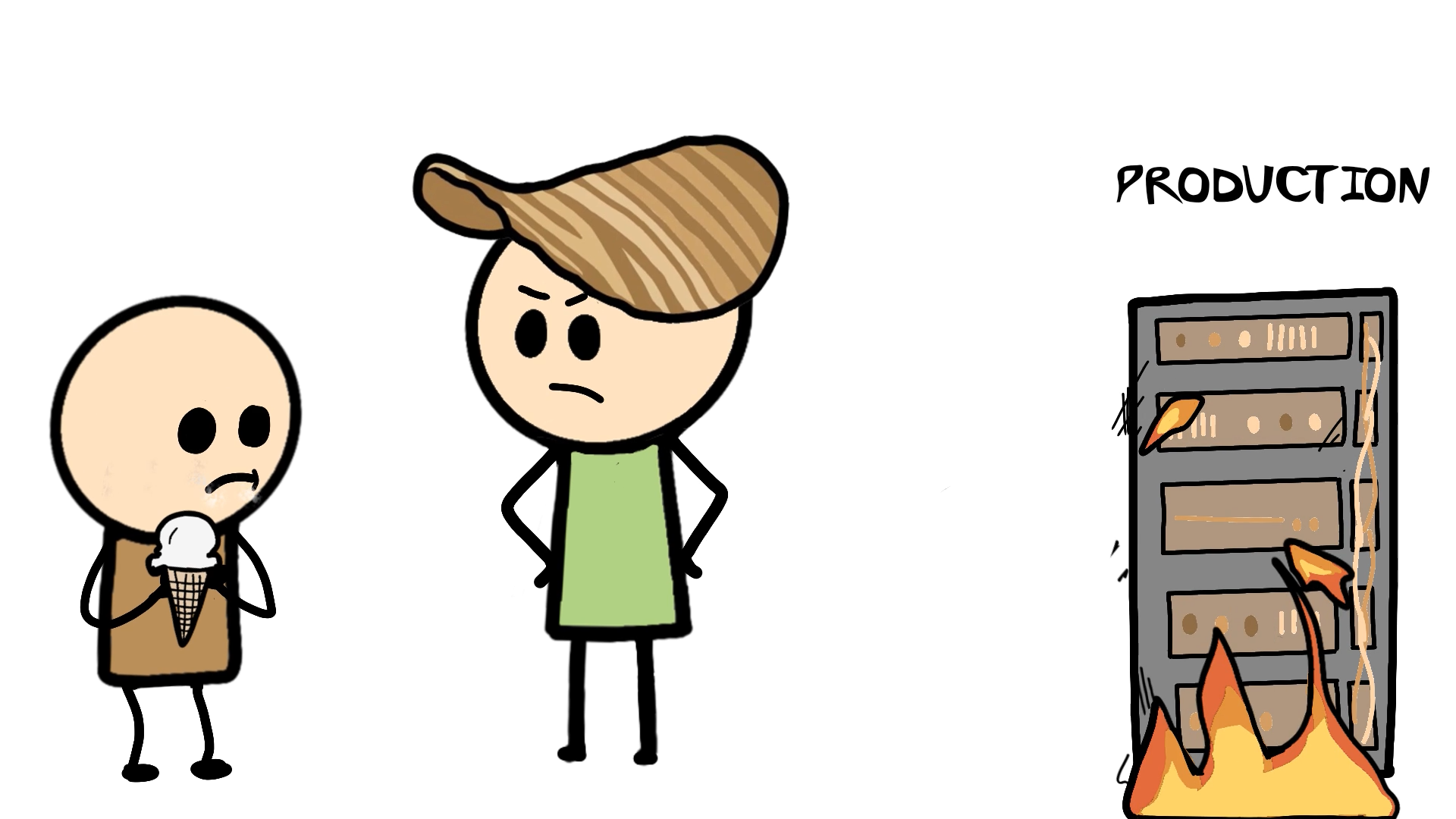
Days later, the senior coughs. “Did you test it properly?” while the junior responds angrily “What do you mean by properly, I even found bugs later and being the talented dev, fixed them as well.” and the senior follows up with “Did you test it after your fix?” The junior offers him an ice cream to cool down but the Production is already on fire.
Nothing here was a talent problem. It was a process problem:
- Humans forget steps, especially after “just a small fix.”
- Manual checking doesn’t scale as the team and the code grow.
- Bugs found late are far more expensive than bugs found minutes after the change.
CI/CD exists so that the checklist runs automatically, identically, on every change, whether or not anyone remembers.
2. What is CI/CD?
Continuous Integration (CI) means every code change is automatically built and tested in a clean environment, and changes are merged into the shared branch often so problems surface while they’re small. Typical CI checks:
- Build verification: does it compile or package?
- Unit tests: does each small piece work alone?
- Integration tests: do the pieces work together?
- Lint and static analysis: is the style consistent, and does the code contain known risky patterns?
- Coverage: how much of the code did the tests actually exercise?
The “CD” has two meanings, and interviewers like asking which one you mean:
| Term | What it means |
|---|---|
| Continuous Delivery | Every change that passes CI is automatically prepared for release. A human still approves the final push to production. |
| Continuous Deployment | Every change that passes all checks goes to production automatically, with no human approval. |
CI doesn’t replace running quick checks locally. Do both: local checks for fast feedback, CI as the safety net that doesn’t depend on anyone’s memory.
3. What is GitHub Actions?
GitHub Actions is GitHub’s built-in automation platform. You describe automation in a YAML file inside your repository, and GitHub runs it in response to events such as a push or a pull request. Official starting point: GitHub Actions documentation.
The vocabulary, mapped to our pib factory (a food company that makes pizza-burgers, and now builds a checking department so no bad pib reaches customers):
| GitHub Actions term | In the pib factory |
|---|---|
| Workflow | A checking department, one automated process |
| Event / trigger | The department’s entrance door |
| Job | A fresh, isolated room inside the department |
| Runner | The type of room (Linux, Windows, Mac) |
| Step | One task on the room’s checklist |
| Action | A ready-made appliance from the marketplace |
| Output | A postcard dropped in a postbox |
| Artifact | A package sent by courier |
A minimal workflow has this shape. We’ll fill in each part in the next sections:
name: pib_patrol          # 4. the workflow
on: [push]                # 5. the trigger
jobs:                     # 6. the jobs
  slice:
    runs-on: ubuntu-latest
    steps:                # 7-8. the steps
      - run: echo "hello"
4. The workflow: name and location
A workflow is one YAML file. GitHub only discovers workflow files in this folder:
.github/workflows/pib_patrol.yaml
Put the file anywhere else and nothing happens.
name: pib_patrol
Nuances:
nameis the label shown in the repository’s Actions tab. If you omit it, GitHub shows the file path.- File extension can be
.ymlor.yaml. - A repository can have many workflows, for example one for tests, one for security scans and one for builds. Each is its own file and runs independently.
- YAML is whitespace-sensitive: use spaces, never tabs.
Reference: Workflow syntax for GitHub Actions.
5. Triggers: the entrance doors (on)
The on key lists the events that start the workflow. You can list one or several:
on:
  pull_request:
  push:
  workflow_dispatch:
  schedule:
    - cron: "0 0 * * *"
5.1 pull_request
Runs when a pull request is opened, synchronized (new commits pushed to its branch) or reopened. Those three are the defaults. Change them with types, and limit to certain target branches with branches:
on:
  pull_request:
    branches: [main]                 # PRs targeting main
    types: [opened, synchronize, reopened, ready_for_review]
5.2 push
Runs when commits are pushed. With no filters it fires for every branch. Narrow it down:
on:
  push:
    branches: [main]
    paths: ["src/**"]                # only when files under src/ changed
A popular setup: pull_request for all branches, push for main only.
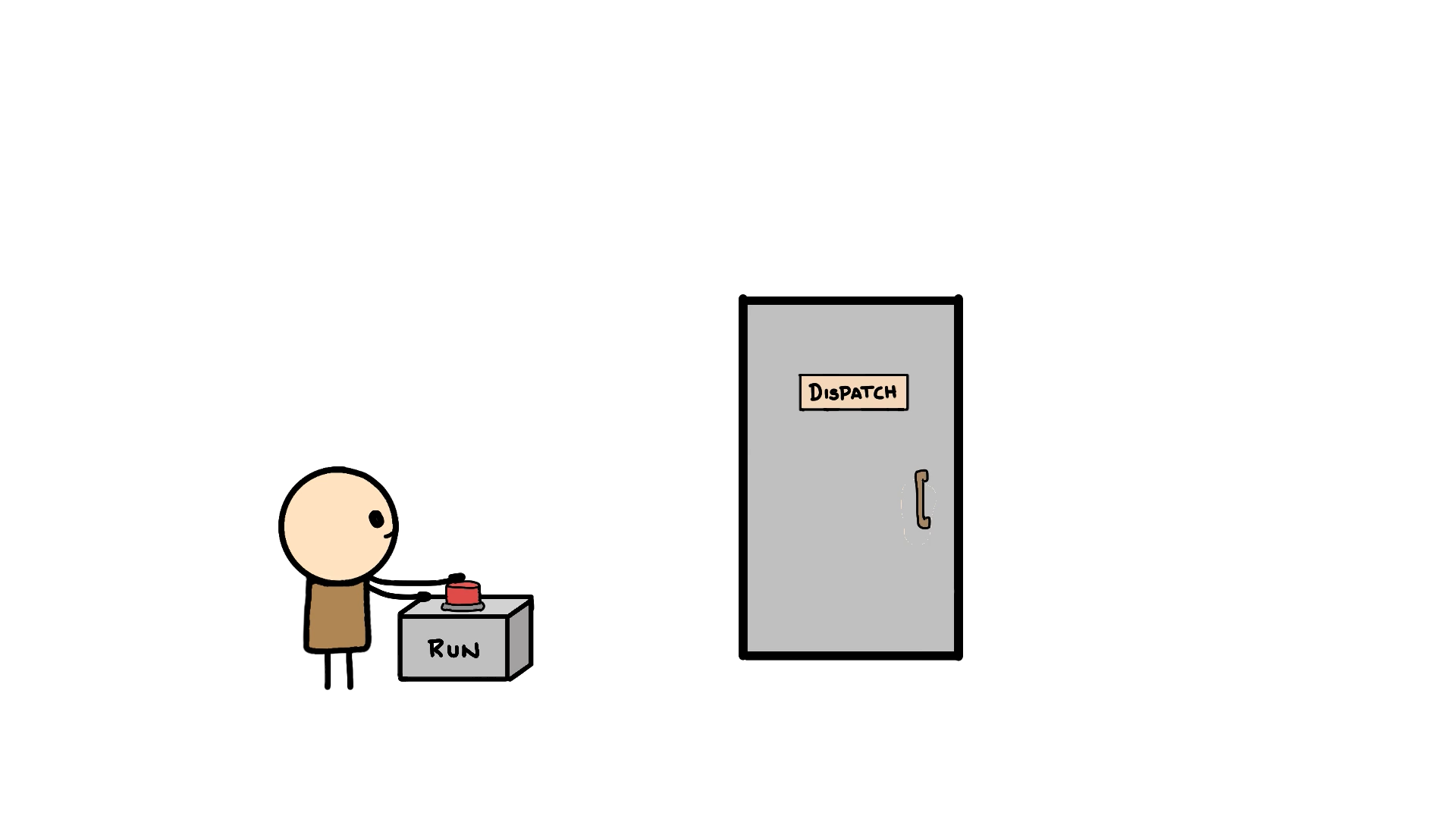
5.3 workflow_dispatch (manual run)
Adds a Run workflow button in the Actions tab, and can also be started from the GitHub CLI or the REST API. It can take typed inputs:
on:
  workflow_dispatch:
    inputs:
      environment:
        description: "Where to run"
        type: choice
        options: [staging, production]
        default: staging
Read it later with ${{ inputs.environment }}. The workflow file must exist on the default branch for the button to appear.
5.4 schedule (cron)
Runs the workflow at set times using POSIX cron syntax, five space-separated fields:
┌───────── minute        (0 - 59)
│ ┌─────── hour          (0 - 23)
│ │ ┌───── day of month  (1 - 31)
│ │ │ ┌─── month         (1 - 12 or JAN-DEC)
│ │ │ │ ┌─ day of week   (0 - 6 or SUN-SAT)
│ │ │ │ │
* * * * *
Operators you can use in any field:
| Operator | Meaning | Example |
|---|---|---|
* |
every value | * in hour = every hour |
, |
list | 1,15 = the 1st and 15th |
- |
range | 1-5 = Monday to Friday |
/ |
step | */15 = every 15 units |
on:
  schedule:
    - cron: "0 9 * * 1-5"
      timezone: "America/New_York"   # optional, see below
Things that surprise people:
- Time zone: by default, schedules run in UTC. GitHub has added an optional
timezonefield (an IANA name such asAsia/Kolkata); without it, convert your local time to UTC yourself. - Minimum interval is 5 minutes.
* * * * *will not run every minute. - Default branch only. Schedules run on the latest commit of the default branch. Changing the cron on a feature branch does nothing until it’s merged.
- Delays are normal. Runs can start late, especially at busy times such as the top of the hour. Offsetting to something like
17 3 * * *helps. - Auto-disable: in public repositories, scheduled workflows are disabled after 60 days without repository activity, and they’re disabled by default in forks.
- Quote the cron string. A value starting with
*is special in YAML. - You can list several
cronentries. Usegithub.event.scheduleto see which one fired.
These are just the common ones. GitHub supports many more events, such as release, issues, workflow_run and repository_dispatch. See Events that trigger workflows for the full list.
6. Jobs and runners (jobs, runs-on)
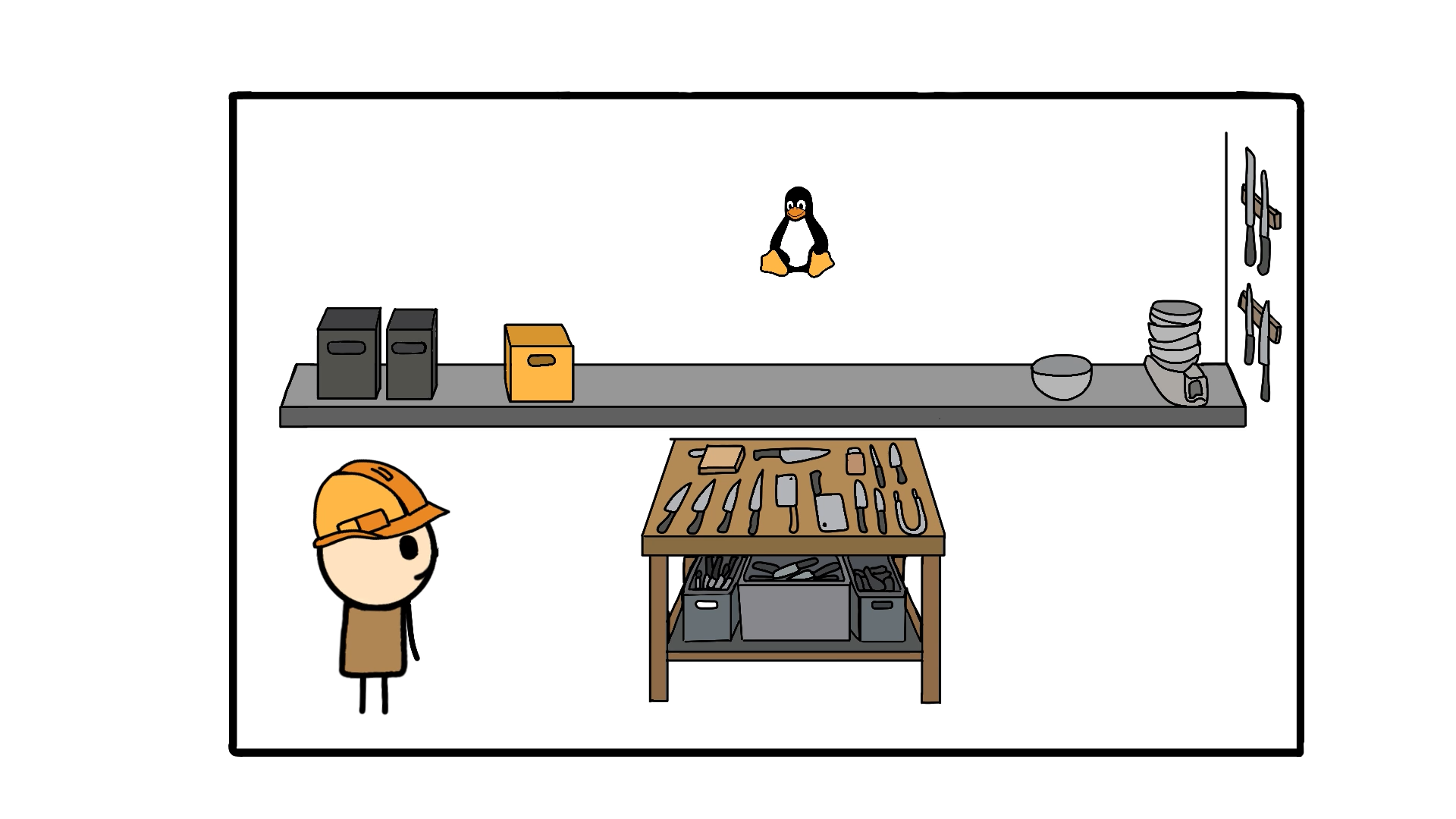
When a trigger fires, GitHub starts the workflow’s jobs. Each job is a group of steps that run on one machine.
jobs:
  slice:                    # job ID
    name: Slice the pib     # optional display name
    runs-on: ubuntu-latest
    timeout-minutes: 15
Nuances:
- Job ID rules: it must start with a letter or
_and contain only letters, numbers,-and_. No spaces. Usename:for a friendly label. - Jobs run in parallel by default and know nothing about each other (see section 9).
- Fresh machine every time. On GitHub-hosted runners each job gets a brand-new virtual machine that is discarded when the job ends. That’s what makes CI a clean environment, and also why nothing carries over between jobs on its own.
- Steps inside one job share the machine, so a file created in one step is visible in the next.
- Timeouts: a GitHub-hosted job can run up to 6 hours, then it’s terminated; set
timeout-minutesto fail faster. A whole workflow run is cancelled at 35 days. See Actions limits.
Choosing the room: runs-on
| Label | Machine |
|---|---|
ubuntu-latest |
Linux, the usual default |
windows-latest |
Windows |
macos-latest |
macOS (usually the most expensive) |
ubuntu-24.04 |
A specific, pinned Linux version |
self-hosted |
Your own machine |
-latest is a moving label: when GitHub promotes a newer image, the same word points to a new OS version. Pin the version if you need stability. Self-hosted runners are machines you maintain yourself, for special hardware or private networks; they can keep files between jobs unless you clean them, and they have their own usage limits.
Teaser for another day: a matrix (strategy.matrix) can create many jobs, such as 3 operating systems × 3 language versions, from one definition, up to 256 jobs per run.
7. Steps and run: your own commands
A job’s steps run one after another, top to bottom, on the same runner. Each step is either a command (run) or a reusable action (uses, next section).
steps:
      - name: Slice the pib
        id: slice
        run: echo "Slicing the pib..."
nameis the label in the logs.idlets other parts of the workflow refer to this step (we need it for outputs).
Running several commands: the | pipe
The | after run: is YAML block syntax, not a shell pipe. It keeps line breaks, so each line becomes a separate command in the same shell:
 - name: Prepare and slice
        run: |
          echo "Heating the oven"
          mkdir -p out
          echo "4 slices" > out/report.txt
Nuances:
- On Linux and macOS the default shell is bash with
-e, so if any line fails, the step stops and fails right there. - Lines share one shell, so a variable set on line 1 is visible on line 3.
- Use
env:to pass environment variables to a step.
In a real project, this is where pytest, npm test, mvn verify or your linter goes.
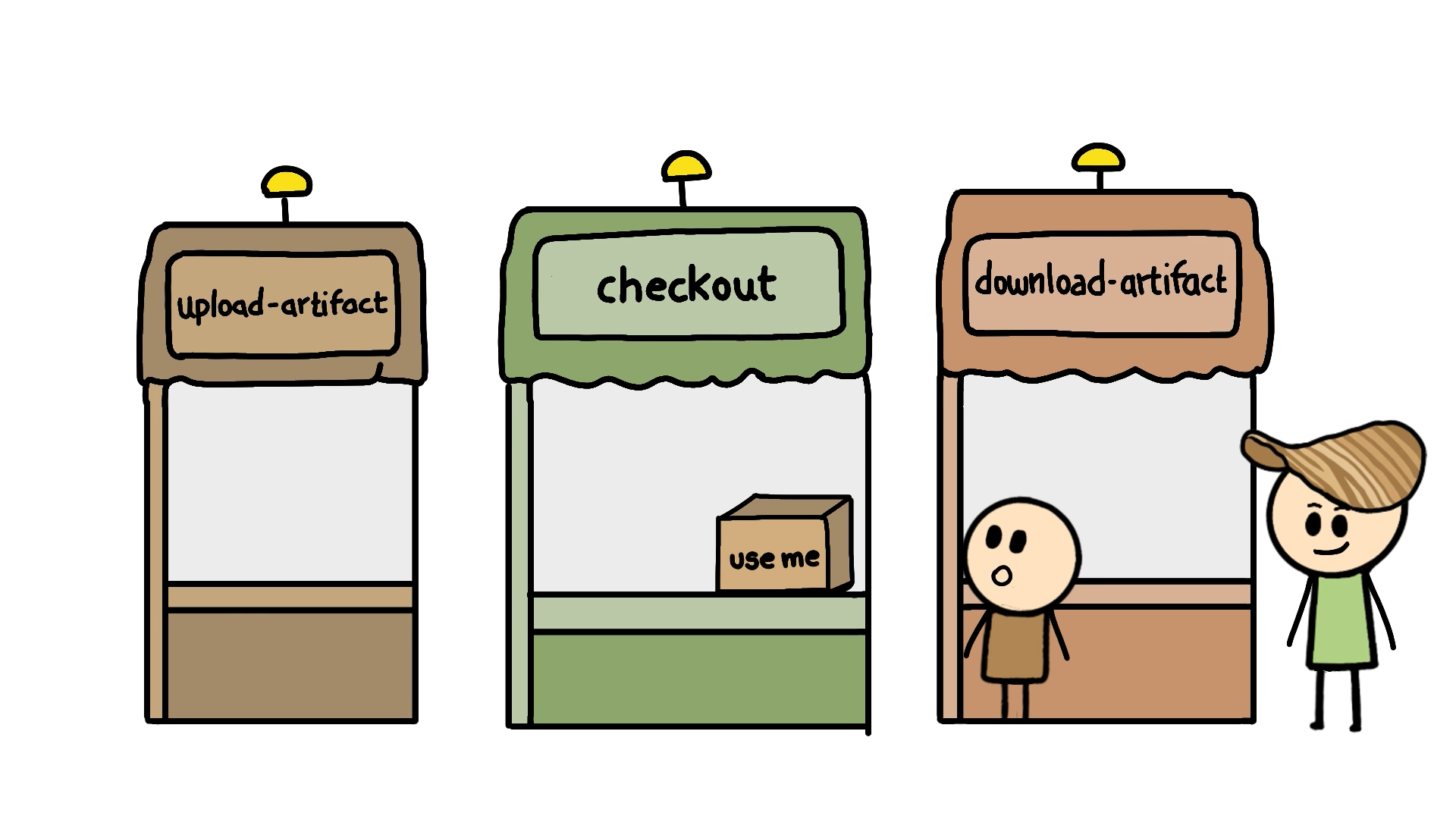
8. Actions and the Marketplace: uses
A fresh runner is empty. To get your repository’s code onto it, you could script authentication, cloning and private-repo handling yourself, or you can reuse what someone has already built. That is uses:
      - name: Get the recipe
        uses: actions/checkout@v6
An action is a reusable unit of automation, shared through the GitHub Marketplace or any repository. Inputs go under with:
      - uses: actions/setup-python@v5
        with:
          python-version: "3.12"
The format is owner/repo@version. Nuances:
- The version after
@can be a tag (@v6), a branch, or a full commit SHA. Tags can move, so security-conscious teams pin to a commit SHA. - Treat third-party actions as dependencies. They run inside your pipeline: prefer trusted publishers, read the source, and keep versions updated.
actions/checkoutfetches only the latest commit by default (shallow clone). Usefetch-depth: 0when you need full history.- Rule of thumb:
usescalls someone else’s action,runruns your own command.
Popular first stops: actions/checkout, actions/setup-python, actions/upload-artifact, actions/download-artifact.
9. Running together, then waiting: needs
Add a second job next to slice:
  taste:
    runs-on: ubuntu-latest
    steps:
      - run: echo "Tasting the pib"
Run it, and both jobs start at the same moment. taste has nothing to taste but still turns green, because jobs are independent by default. Parallel-by-default keeps pipelines fast; you just have to declare real dependencies:
  taste:
    needs: slice
    runs-on: ubuntu-latest
Nuances:
needsmakes the job wait until the needed job finishes successfully.- If the needed job fails, the dependent job is skipped, not failed. Override with
if: ${{ always() }}for cleanup or notification jobs. - Depend on several jobs with a list:
needs: [slice, build]. It waits for all of them. - Chains work (C needs B needs A), but circular dependencies are rejected.
needsis also what lets a job read another job’s outputs.
10. Passing small data: outputs
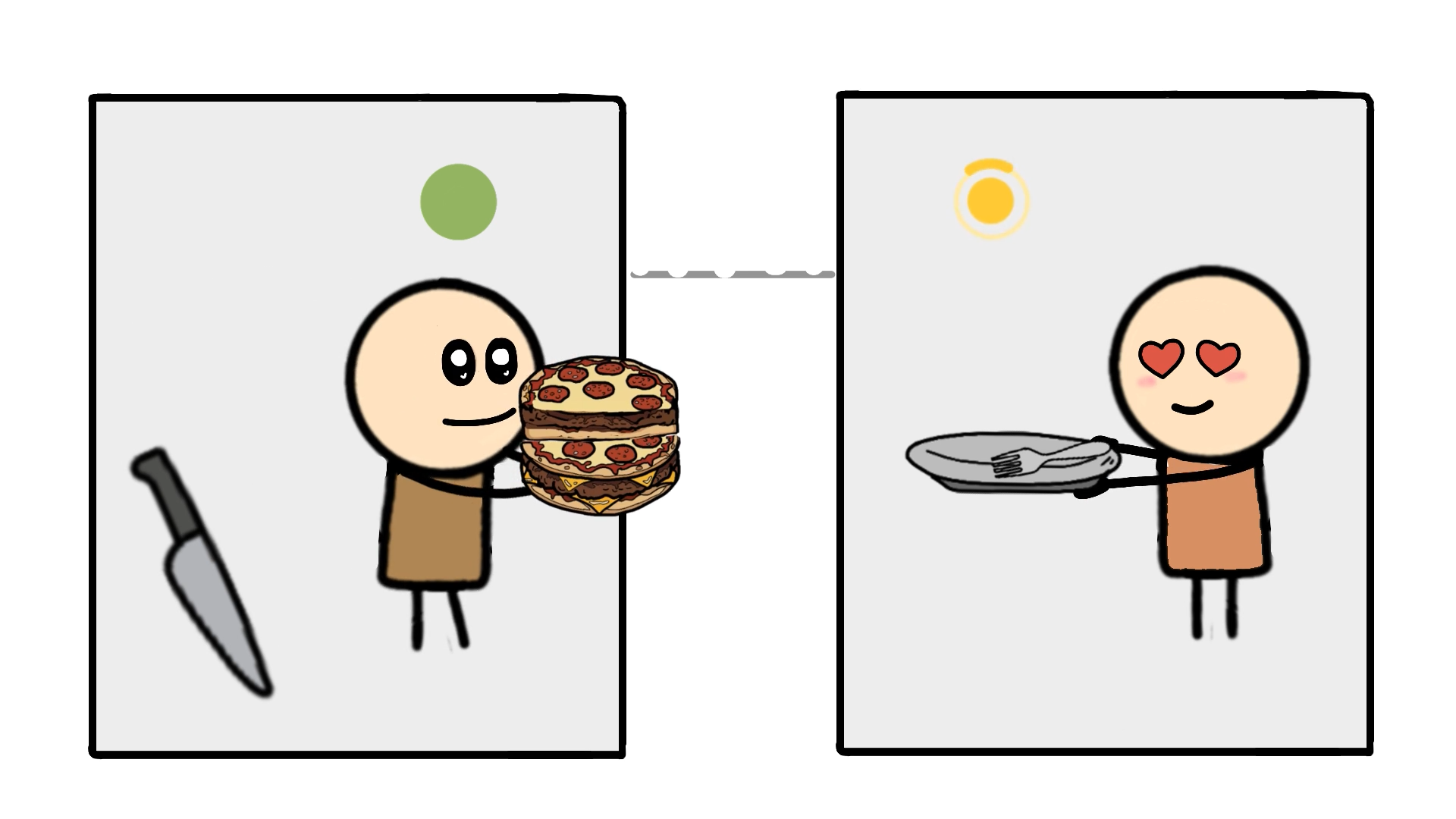
Jobs run on separate machines, so one job can’t read another’s variables. To send small values forward, use outputs. It takes three hops:
jobs:
  slice:
    runs-on: ubuntu-latest
    outputs:
      count: ${{ steps.slice.outputs.count }}   # 2. expose it
    steps:
      - name: Slice the pib
        id: slice
        run: echo "count=4" >> "$GITHUB_OUTPUT"   # 1. write it

  taste:
    needs: slice
    runs-on: ubuntu-latest
    steps:
      - run: echo "Tasting ${{ needs.slice.outputs.count }} slices"   # 3. read it
- A step writes
name=valueto the file named by$GITHUB_OUTPUT. (It’sGITHUB_OUTPUT, singular; the old::set-outputcommand is deprecated.) - The job exposes it in its
outputs:block, using the step’sid. - Another job reads it as
needs.<job_id>.outputs.<name>, which requiresneeds.
Nuances:
- Outputs are strings and meant to be small: a version, a count, a flag. They have size limits (see the docs).
- A step output doesn’t leave its job unless you map it in
outputs:.
Official guide: Pass job outputs.

11. Passing files: artifacts
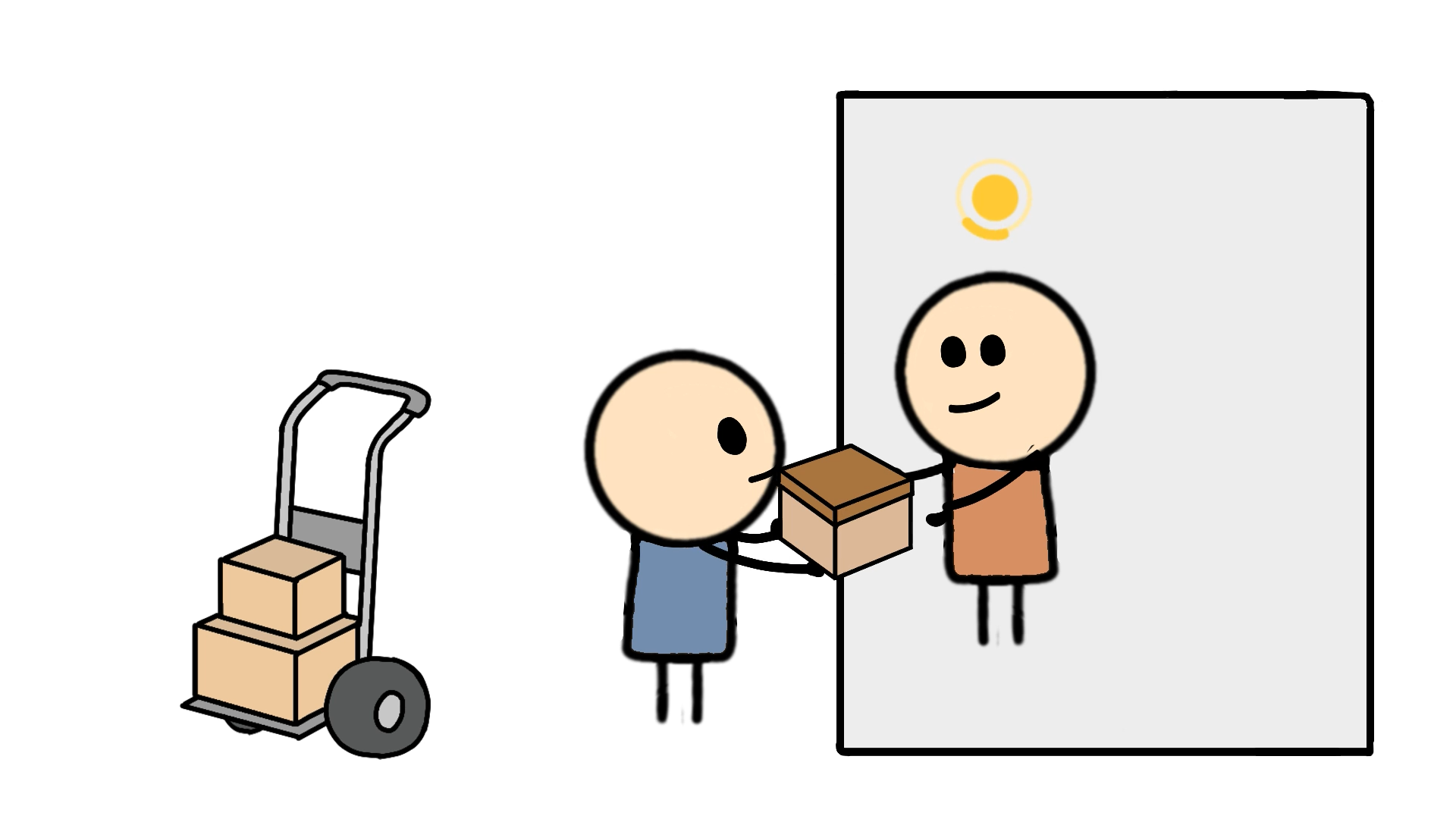
A report, a build, or a pile of test results won’t fit in a postcard. Artifacts store files from a job so other jobs, or you, can download them later.
  slice:
    runs-on: ubuntu-latest
    steps:
      - run: echo "Pib cut into 4 slices" > report.txt
      - uses: actions/upload-artifact@v4
        with:
          name: pib-report
          path: report.txt
          retention-days: 30          # optional

  check_cuts:
    needs: slice                      # wait, or there is nothing to download
    runs-on: ubuntu-latest
    steps:
      - uses: actions/download-artifact@v4
        with:
          name: pib-report
      - run: cat report.txt
How long are artifacts kept?
- Default: 90 days. Artifacts and logs are deleted automatically after that.
- Public repositories: you can set retention anywhere from 1 to 90 days.
- Private and internal repositories: anywhere from 1 to 400 days.
- Set it per artifact with
retention-dayson the upload step, or as a default for a repository, organization or enterprise in settings. A repository can’t exceed the cap set by the organization or enterprise that manages it. - A new retention setting applies only to new artifacts, not existing ones.
- Separate from this, workflow run history is kept 400 days and that can’t be changed.
See Configuring retention for artifacts and logs and usage limits and storage. Artifact storage counts toward your plan’s quota.
Other artifact details
- Upload options:
name,path(a file, folder or glob),retention-days,if-no-files-found(warn,errororignore) andoverwrite. - Names must be unique within a run with
upload-artifact@v4. Jobs on several operating systems should put the OS in the name (for examplereport-${{ runner.os }}). - Download by name, or omit
nameto download all artifacts of the run; each lands in its own folder. - Downloading from another workflow run needs the
run-idand agithub-token. - You can also download artifacts by hand from the workflow run page.
- Artifacts vs. cache: artifacts keep results you want to pass on or inspect.
actions/cachestores dependencies so the next run is faster.
Outputs vs. artifacts in one line: outputs are small strings passed between jobs; artifacts are files that outlive the job.
Repos: upload-artifact and download-artifact.
12. The whole pib_patrol
name: pib_patrol

on:
  pull_request:
  push:
  workflow_dispatch:
  schedule:
    - cron: "0 0 * * *"

jobs:
  slice:
    runs-on: ubuntu-latest
    outputs:
      count: ${{ steps.slice.outputs.count }}
    steps:
      - name: Get the recipe
        uses: actions/checkout@v6

      - name: Slice the pib
        id: slice
        run: |
          echo "Slicing the pib..."
          echo "count=4" >> "$GITHUB_OUTPUT"
          echo "Pib cut into 4 slices" > report.txt

      - name: Upload report
        uses: actions/upload-artifact@v4
        with:
          name: pib-report
          path: report.txt

  taste:
    needs: slice
    runs-on: ubuntu-latest
    steps:
      - name: Taste the slices
        run: echo "Tasting ${{ needs.slice.outputs.count }} slices"

  check_cuts:
    needs: slice
    runs-on: ubuntu-latest
    steps:
      - name: Download report
        uses: actions/download-artifact@v4
        with:
          name: pib-report

      - name: Check report
        run: cat report.txt
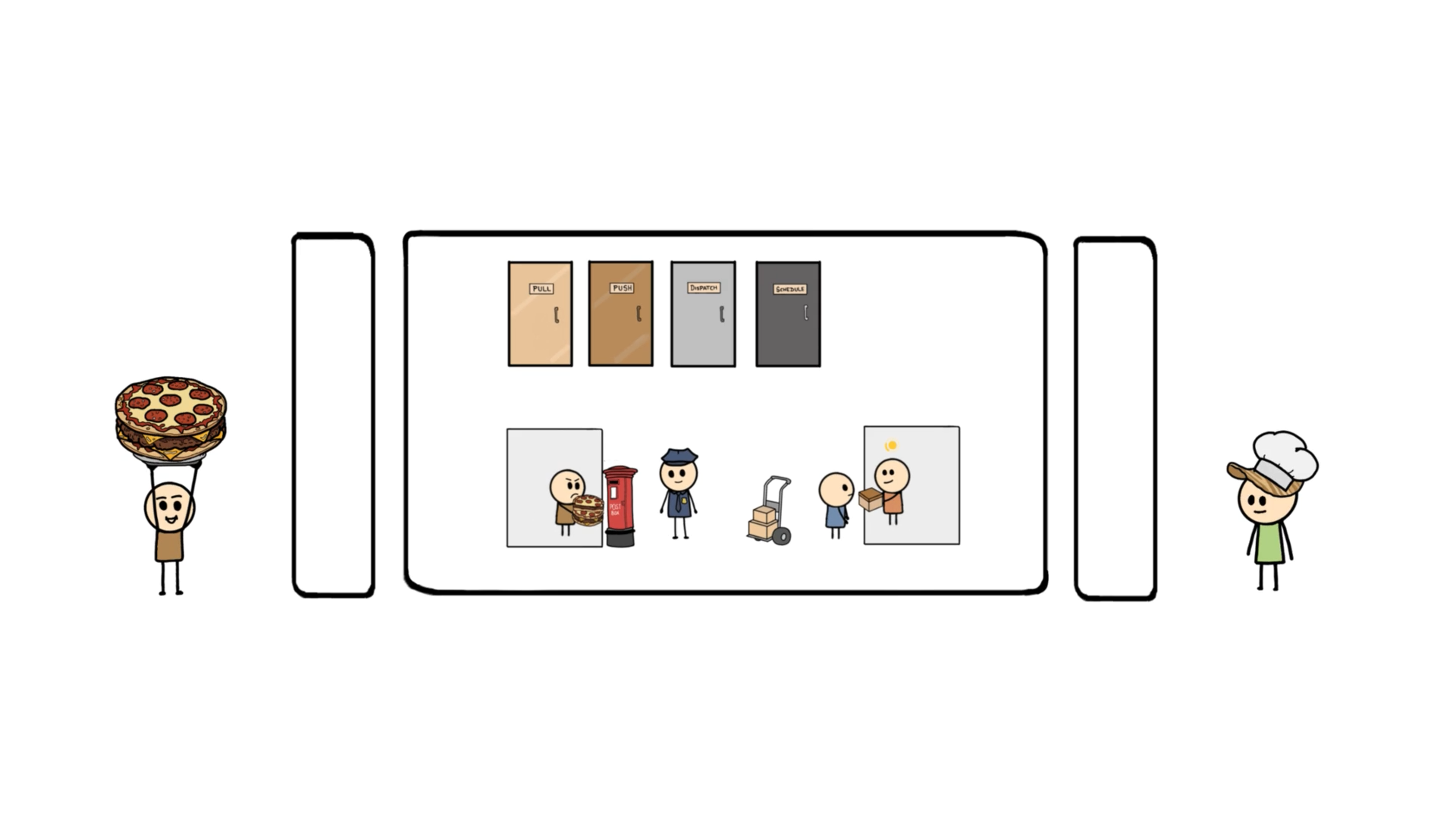
Read the flow: a trigger opens the door, slice runs, and when it finishes taste and check_cuts start in parallel, one reading a postcard and the other collecting a courier package. In a real project, slice becomes your build, taste your tests, and check_cuts your lint, coverage or report checks.
13. Quick reference and what’s next
| Item | Value |
|---|---|
| Workflow folder | .github/workflows/ |
pull_request default types |
opened, synchronize, reopened |
| Cron fields | minute, hour, day of month, month, day of week |
| Cron time zone | UTC by default (optional timezone field) |
| Shortest schedule interval | 5 minutes |
| Scheduled runs | Default branch only |
| Job time limit (GitHub-hosted) | 6 hours |
| Workflow run limit | 35 days |
| Matrix limit | 256 jobs per run |
| Artifact retention default | 90 days |
| Artifact retention range | 1-90 days public, 1-400 days private/internal |
| Workflow run history | 400 days, fixed |
Where to go next:
- Make checks mandatory. With branch protection and required status checks, a pull request can’t merge until the pipeline passes. Without that, CI is only advice.
- Conditions (
if:) to run steps or jobs only in certain situations, secrets for credentials, caching for speed, and matrix builds. - Reusable workflows and custom actions to share automation across repositories.
- Continuous delivery, so changes that pass every check reach users automatically.
All limits and defaults can change, so double-check them in the official limits page before you rely on them.
Remember
Continuously integrate, or someone will end up under this:
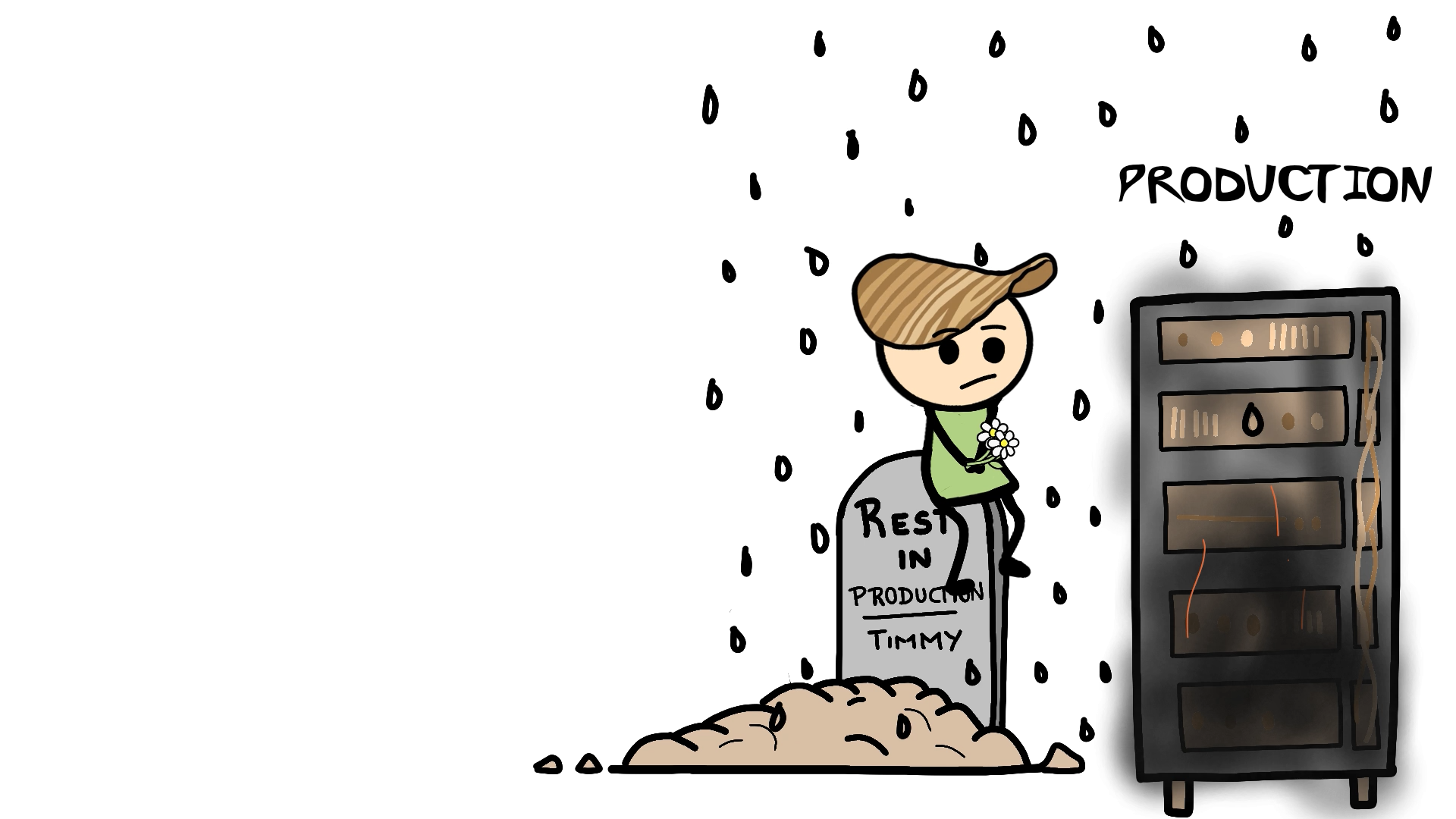
REST IN PRODUCTION
Comments
Join the discussionNo comments yet. Be the first to comment.